Spellar AI Review 2026: Ai, Windows, Alternative, Download & FAQs

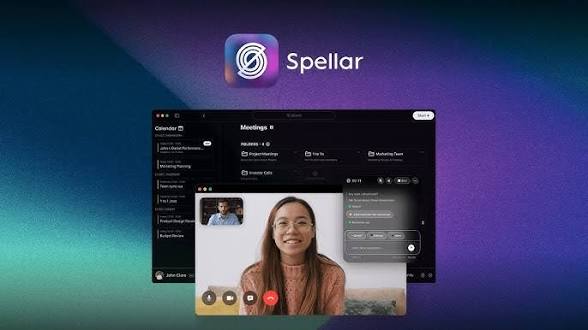
Table of Contents
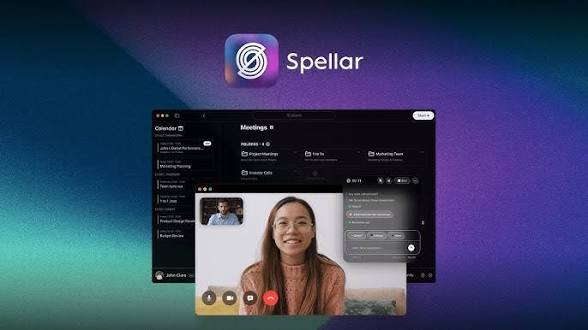
Spellar AI is one of the more thoughtful meeting assistants we have tested this year, especially for Mac and iPhone users who want clean notes and a built-in speaking coach without a bot crashing the call. The score stays at 3.3 because the lack of a true Windows app, a still-small review base, and a few rough edges hold it back from the top of the pack. |
We spend a lot of meetings at Nubia Magazine, so when a tool promises to take notes for us and quietly fix our spoken English at the same time, we pay attention. Spellar AI has been making that promise for a while now, and the 3.0 release earlier in 2026 pushed it back into the conversation. We spent time with it on real calls before writing this up. Here is the honest picture.
Spellar AI sits in a crowded space. Otter, Fireflies, Granola and Fathom all want the same job, and most of them have bigger user bases. What makes Spellar interesting is the combination it offers: it records locally on your device, no bot joins the meeting, and on top of the notes it acts as a speaking coach that flags filler words and pronunciation slips. That second part is unusual, and it is the reason the tool gets talked about. Below we walk through the AI, the Windows situation, how to download it, the day-to-day experience, the main alternatives, and the questions people keep asking about the brand in 2026.
Spellar AI at a Glance
Before the deep dive, here is the quick profile we put together while researching the product.
Product name | Spellar AI (currently on version 3.0) |
Category | AI meeting assistant and speaking coach |
Company | Spellar Inc. |
Founded | 2023 |
Headquarters | London, United Kingdom |
Platforms | macOS, iOS, iPadOS and Web. No native Windows app yet |
Core features | Bot-free recording, transcription, AI summaries, action items, AI chat, real-time speaking tips |
AI models | GPT, Claude, Gemini and Perplexity, switchable per meeting, with bring-your-own-key support |
Languages | 100+ with automatic language detection |
Integrations | Notion, Craft, Miro, Linear, Jira, Confluence, Google Docs, Todoist and more |
Calendar sync | Google Calendar and Outlook |
Pricing | Free tier available, paid plans start at roughly 7.99 USD per month, with a free trial |
Free trial | Yes, plus a short money-back window on paid plans |
Website | spellar.ai |
Nubia rating | 3.3 / 5 |
The AI: What Spellar Actually Does
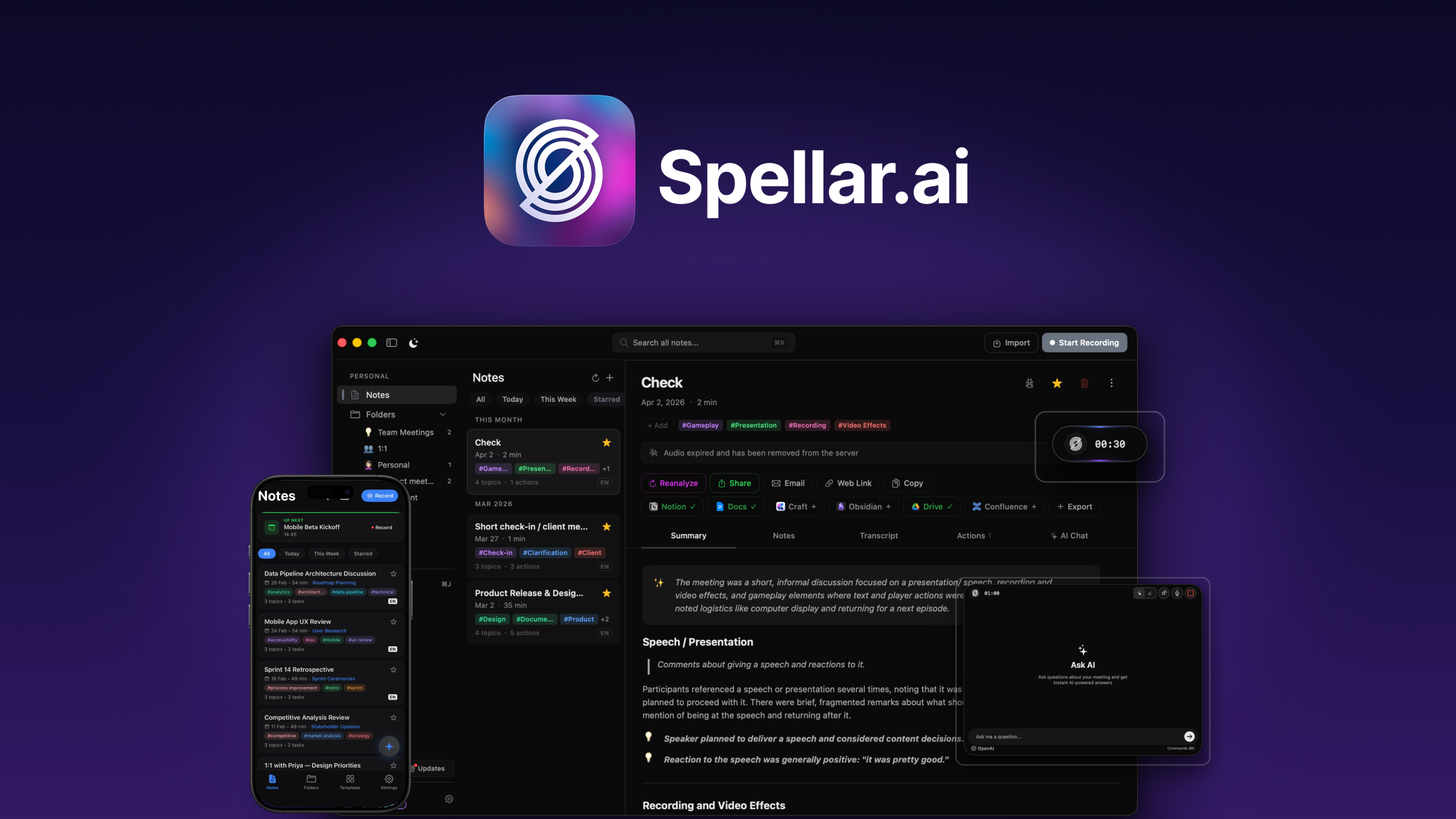
At its core Spellar is a recorder that listens to your meeting and turns the audio into something useful afterwards. It captures the call directly on your machine, so there is no extra participant showing up in the attendee list. Once the meeting ends, it produces a transcript, a structured summary, a list of action items, and a set of decisions. You can then open an AI chat and ask follow-up questions about what was said, which is handy when you are trying to remember a detail from a call two weeks ago.
The part that sets it apart is model choice. Instead of locking you into one engine, Spellar lets you run summaries and chat through GPT, Claude, Gemini or Perplexity, and you can switch depending on the meeting or even the single question. Power users can plug in their own API key so the AI calls stay on their own account, which is good for both privacy and cost control. The 3.0 update added cross-meeting memory, so the assistant can connect threads across several conversations rather than treating each call as an island.
Then there is the speaking coach. Spellar started life as a tool to help non-native English speakers sound more natural, and that DNA is still there. During calls it can surface real-time tips, count your filler words, and after the meeting it gives feedback on pronunciation, grammar and clarity, along with vocabulary suggestions. If your goal is to sharpen how you come across in English, this is genuinely useful and not something most rivals bother with.
Privacy and recording
Recording happens on-device, audio lands in an encrypted vault, and you control how long it is kept, from a single hour up to always, or device-only so nothing leaves your machine. Server-side transcription is off by default and you opt in per meeting, or you can run an on-device model with speaker labels. For people who are nervous about meeting data sitting on a vendor server, this is a reassuring setup, and it is one of the things existing users praise most.
Spellar AI on Windows: The Honest Answer
This is the question we saw asked more than any other, so we want to be clear. As of mid 2026 there is no native Spellar app for Windows. The polished desktop experience, the menu bar copilot, local recording and the speaking coach all live on macOS, with companion apps on iPhone and iPad.
Windows users are not completely locked out, though. Spellar has a web version where you can sign in, read your notes and manage transcripts from any browser, including on a PC. The team has also said that recording directly from the web is on the roadmap, which would finally let Windows users capture calls without a Mac. Until that ships and matures, a Windows-only user should treat Spellar as a companion you view in the browser rather than a full desktop tool. If your whole team runs Windows, this is the single biggest reason to look elsewhere, and it weighs heavily on our score.
You may also see third-party wrappers that promise to run Spellar in a desktop window on Windows. Those simply load the web app inside a separate frame. They are not an official Windows build and they do not unlock native local recording, so we would not lean on them for anything important.

How to Download and Set Up Spellar AI
Getting started is straightforward if you are on Apple hardware. Here is the route we followed.
- Go to spellar.ai and download the macOS app, or grab Spellar from the iPhone and iPad app store for mobile. Mac users can also find it through Setapp.
- Create an account, then connect your Google or Outlook calendar so upcoming meetings appear automatically.
- Grant microphone and screen recording permissions on macOS. This step matters, because skipping it is the most common reason recordings fail.
- Pick your default AI model, and add your own API key if you want the AI calls billed to your own account.
- Start a meeting and hit record from the menu bar, or let the calendar widget prompt you when a call begins.
Windows and Linux users skip the download and simply sign in to the web app instead, keeping in mind the recording limits described above.
User Experience: Living With Spellar
On a Mac, Spellar feels light and stays out of the way. The menu bar control is quick, recordings start with one click, and summaries land fast, often within a minute of the call ending. The summary quality impressed us most. Instead of a wall of text, you get clearly separated decisions, highlights and action items that are easy to paste into a follow-up note. Exporting those straight into Notion, Linear or Google Docs worked smoothly and saved real time.
The speaking coach grew on us. Seeing a live count of filler words is mildly humbling, and the after-call pronunciation notes are the kind of feedback you rarely get unless you pay for lessons. For anyone working in English as a second language, this alone may justify the subscription.
It is not all smooth, though. We hit the occasional recording hiccup, and other users report the same, particularly the combination of Zoom and AirPods on Mac. A few people have noted that re-transcribing non-English audio sometimes defaults back to English, and there have been requests for cleaner PDF export. None of these are dealbreakers on their own, but together they signal a product that is still maturing rather than fully settled.
What we liked
- No bot ever joins the call, so clients and colleagues are not staring at a Notetaker in the participant list.
- Genuinely useful, well-structured summaries and action items.
- Free choice of AI model, with bring-your-own-key support.
- A speaking coach that actually helps non-native English speakers.
- Strong, privacy-first local recording with flexible retention.
What held it back
- No native Windows app, which rules it out for a lot of teams.
- Occasional recording reliability issues, notably with Zoom and AirPods.
- A small public review base compared with bigger rivals, so social proof is thin.
- Pricing and plan names have shifted over time, which makes it harder to predict long-term cost.
Pricing
Spellar keeps a free tier so you can try the basics, and paid access has hovered around 7.99 USD per month at the entry level, with a higher tier above it and team plans that start at five seats and scale up. The company has at times bundled every AI model into a single Pro plan with a free trial and a short refund window. Because the exact plan structure has changed more than once, we recommend checking the live pricing page before you commit, rather than trusting any single number you find in a listing or an older article.
Spellar AI Alternatives Worth Considering in 2026
Spellar is not the only game in town, and the right pick depends on your platform and what you need after the meeting ends. These are the names that came up most often in our research.
- Granola: The closest spiritual match. Bot-free, captures device audio, and unlike Spellar it now runs on both Mac and Windows. A strong default for note takers who hate bots.
- Otter.ai: Best if you live in a searchable archive of past calls and want live captions during the meeting. Broad team features.
- Fireflies.ai: Aimed at sales and bigger teams, with deep CRM connections and wide language support. It does send a visible bot, though.
- Fathom: Has one of the most generous free tiers around, with unlimited recording. A good starting point if budget is the main concern.
- Jamie or Notta: Cross-platform options that cover Windows as well as Mac, worth a look if Apple-only is a problem for you.
None of these include Spellar's speaking-coach angle, so if improving how you sound on calls matters to you, Spellar still has a clear niche.
How We Reached 3.3 / 5
Our overall score is the average of the categories below. The strong marks for summaries, the speaking coach and privacy are pulled down mainly by platform reach and the product's relative youth.
Category | Score | Notes |
Notes and summary quality | 4.0 | Clear, well-structured, fast |
Speaking coach features | 3.8 | A real differentiator |
Privacy and data control | 4.0 | Local recording, flexible retention |
Pricing and value | 3.2 | Fair, but plans keep shifting |
Reliability and maturity | 2.8 | Some recording bugs, still young |
Platform availability | 2.0 | No native Windows app |
Overall | 3.3 | A solid Mac tool with a clear niche |
Who Should Use Spellar AI
If you work on a Mac or iPhone, sit in plenty of calls, and either dislike meeting bots or want to improve your spoken English, Spellar is an easy recommendation. It is also a good fit for privacy-conscious freelancers and consultants who do not want client conversations leaving their device.
If your team runs Windows, or you need a deep searchable archive of hundreds of past calls, or you want a long track record of reviews behind your tool, you will probably be happier with Granola, Otter or Fathom for now.
Frequently Asked Questions
1. Is Spellar AI free to use?
Yes, there is a free tier that covers the basics so you can try it without paying. Heavier use, unlimited recordings and the full set of features sit behind a paid plan that has started at around 7.99 USD per month, with a free trial before you are charged.
2. Does Spellar AI work on Windows?
Not as a native app. The full desktop experience is built for macOS, with mobile apps for iPhone and iPad. Windows users can sign in to the web version to view and manage notes, and the team has said web recording is on the way, but a true Windows app does not exist yet.
3. Does a bot join my meeting when I use Spellar?
No. Spellar records the audio directly on your device, so no extra participant appears in the call and other attendees are not notified by the tool. This is one of its main selling points.
4. Which video platforms does Spellar support?
Because it records your device audio rather than joining the call, it works with Zoom, Google Meet, Microsoft Teams, Webex and even in-person meetings captured on your iPhone.
5. How many languages can Spellar transcribe?
Spellar supports more than 100 languages with automatic language detection, so it can pick up the spoken language without you setting it manually.
6. Which AI models power Spellar AI?
You can run it on GPT, Claude, Gemini or Perplexity and switch between them per meeting or per question. You can also bring your own API key so the AI requests are billed to your own account.
7. Is my meeting data private and secure?
Recording happens on your device and audio is stored in an encrypted vault with retention you control, including a device-only option so nothing leaves your machine. Server-side transcription is off by default and you opt in when you want it.
8. Can Spellar export notes to other apps?
Yes. It connects with Notion, Craft, Miro, Linear, Jira, Confluence, Google Docs and Todoist, among others, so you can push summaries and action items straight into your existing workflow.
9. What are the best alternatives to Spellar AI?
Granola is the closest match and runs on Windows too, Otter is strong for searchable archives, Fireflies suits sales teams, and Fathom has a very generous free tier. None of them include Spellar's speaking-coach feature, though.
10. Is Spellar AI worth it in 2026?
For Mac and iPhone users who want clean, bot-free notes and a bonus speaking coach, yes. We rate it 3.3 out of 5. The score is held back mainly by the missing Windows app and a few reliability quirks rather than by the quality of the notes themselves.
Related Posts


0 Comments
Join the discussion and share your thoughts
No Comments Yet
Be the first to share your thoughts on this article!